How to play Rating Cup #92




FAQ
How to locate the group, date, and time for your matches?
Upon schedule creation, the tournament's main page will display the groups, including yours. It's an automated process.
Navigate to your group, where you'll access information about your matches and your group's current standings.
To view a different group, select it from the drop-down list.
Clicking on "Show All" or "Matches" will provide a comprehensive list of your upcoming matches.
Alternatively, you can access this information via your profile page in the matches section, which includes details about upcoming matches, their maps, and start times.
Alternatively, you can access this information via your profile page in the matches section, which includes details about upcoming matches, their maps, and start times.
Completed match results are available under "Results"
For a deep dive into a specific match, click on it to uncover additional details, such as the start time, server name, and password (which will be published 10 minutes before the match).
IMPORTANT:
Match dates and times are indicated according to the time zone specified on our website
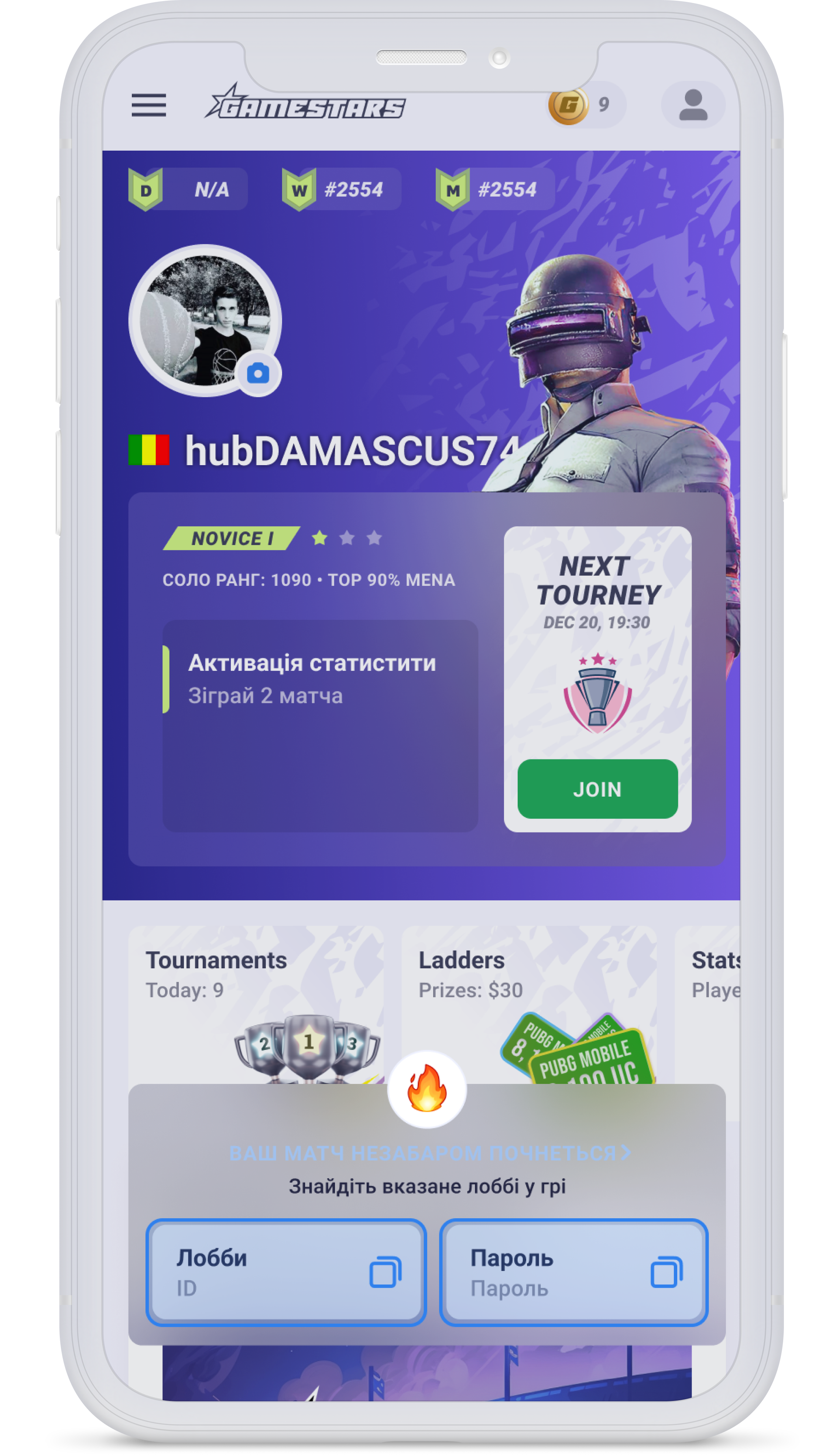
Назва сервера та пароль будуть опубліковані за 10 хвилин до початку матчу.
Як тільки він буде опублікований, Ви отримаєте повідомлення на сайті, де Ви зможете знайти всі необхідні дані (Впевніться, що Ви війшли на сайт під профілем, який зареєстрований на турнір)
Ви можете скопіювати ім'я сервера та пароль, натиснувши відповідну кнопку.

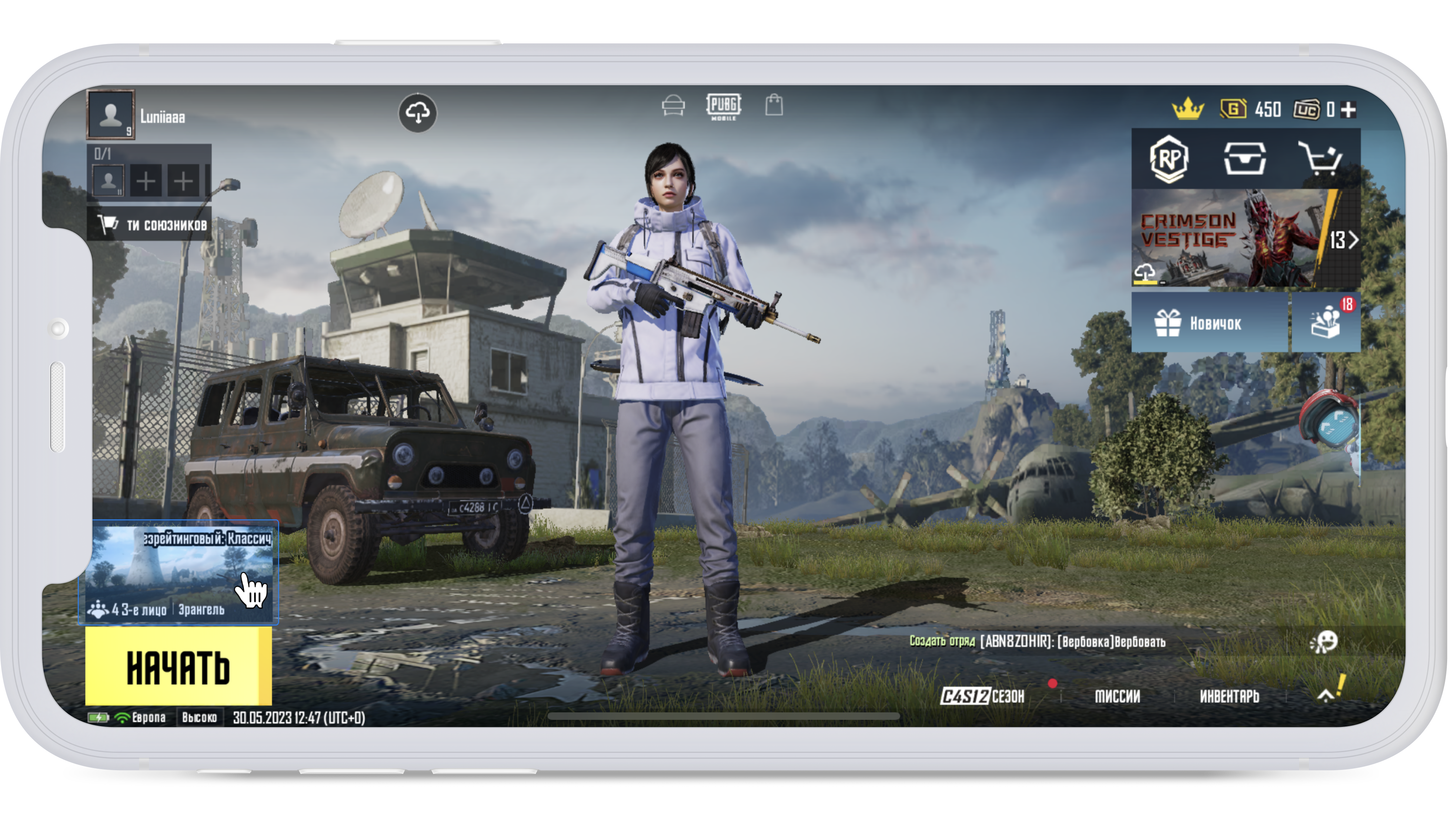
Щоб увійти в ігрову кімнату PUBG Mobile в режимі соло, натисніть кнопку вибору режиму.
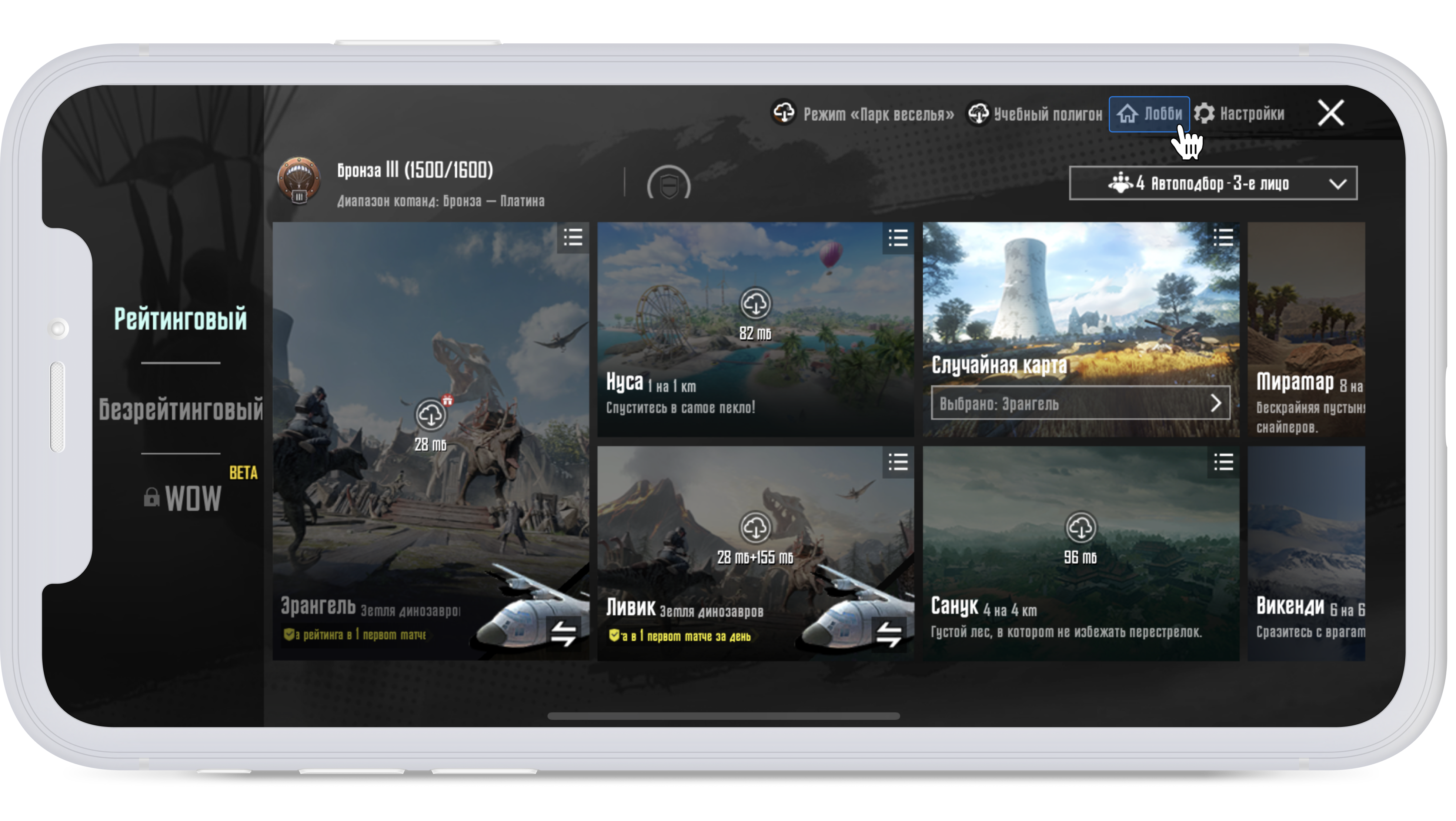
Потім натисніть на кнопку «Лоббі».
Введіть ID, який ви можете знайти на сторінці матчу на сайті, у відповідне поле та натисніть «Увійти».
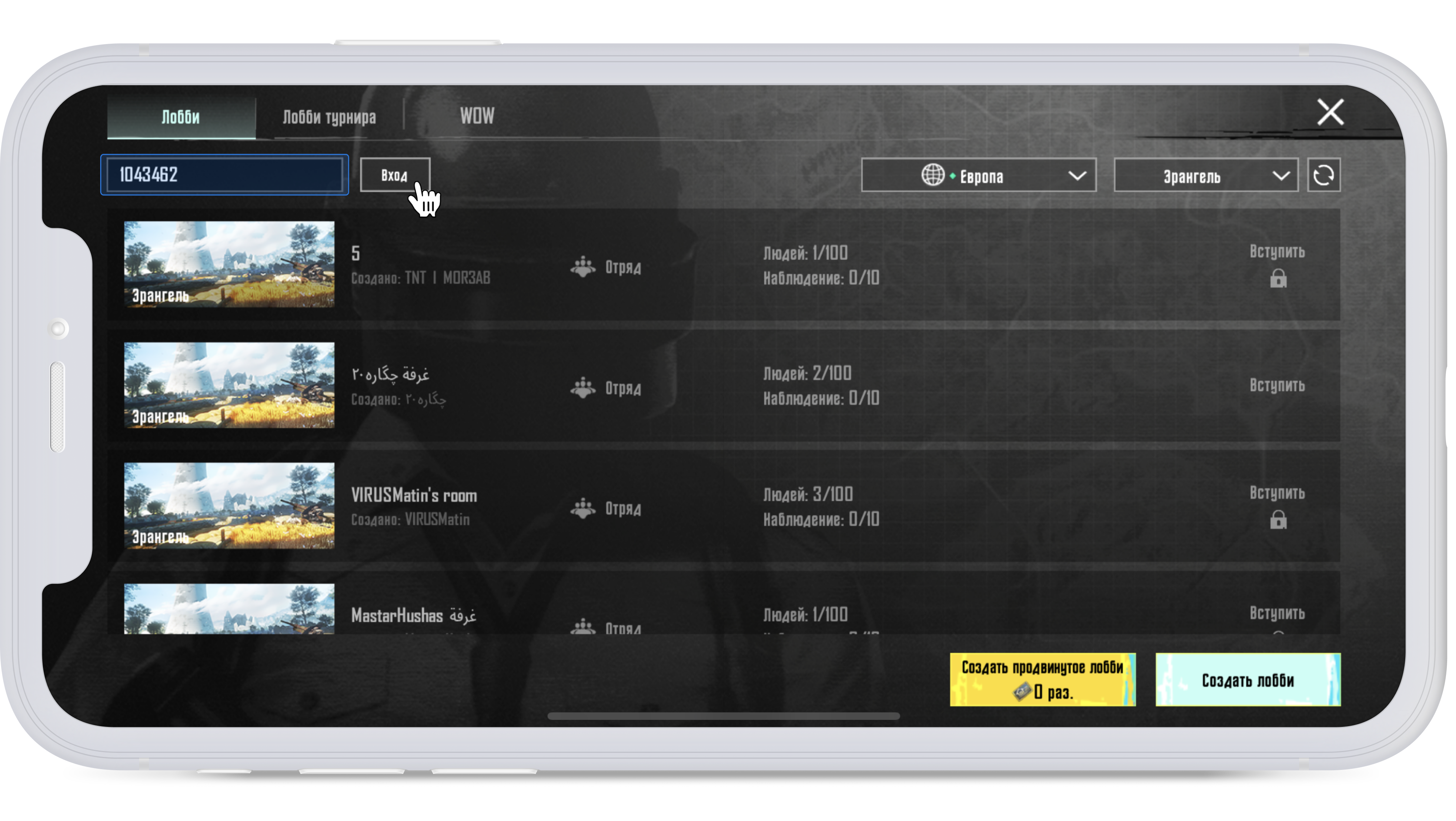
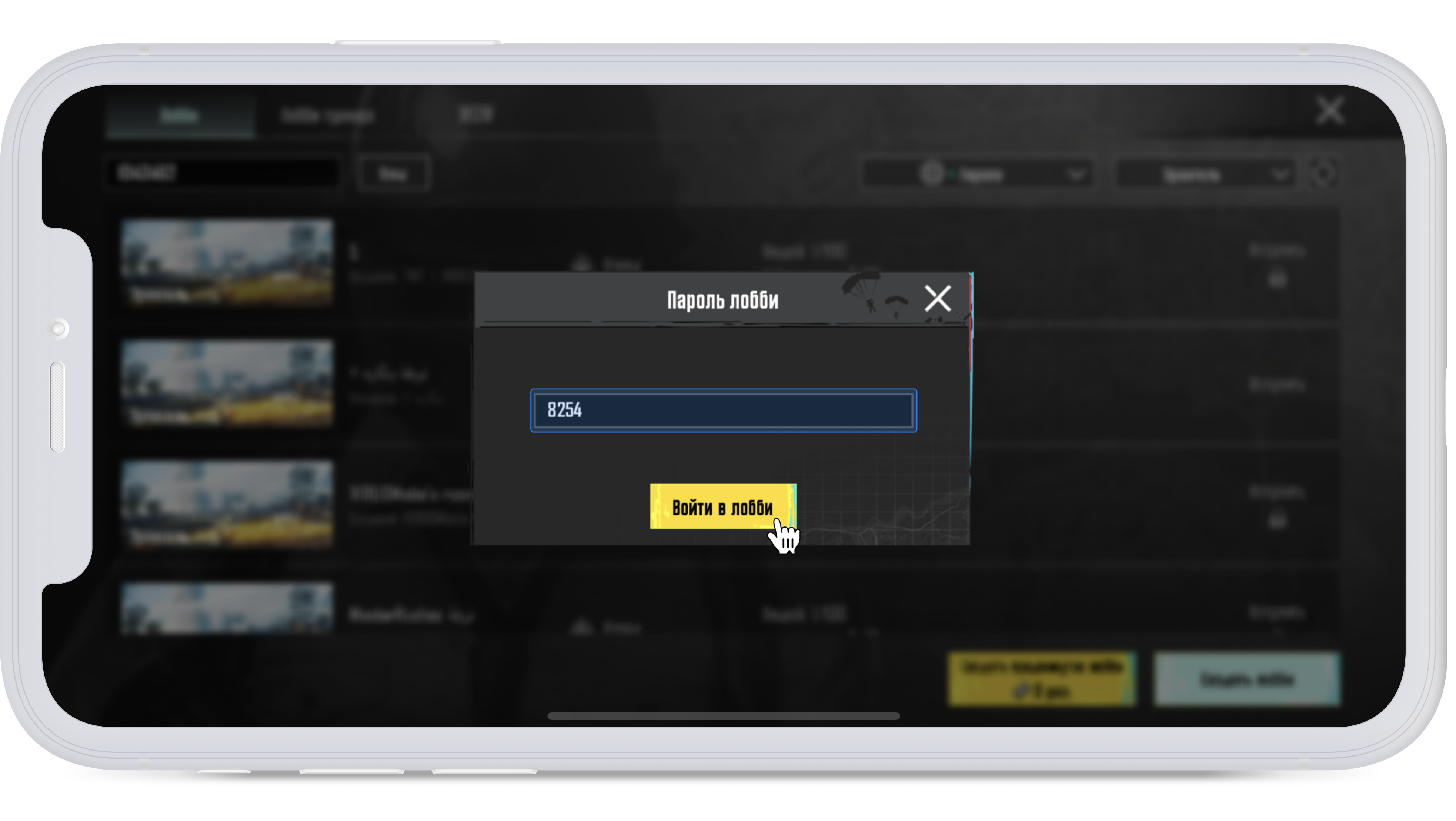
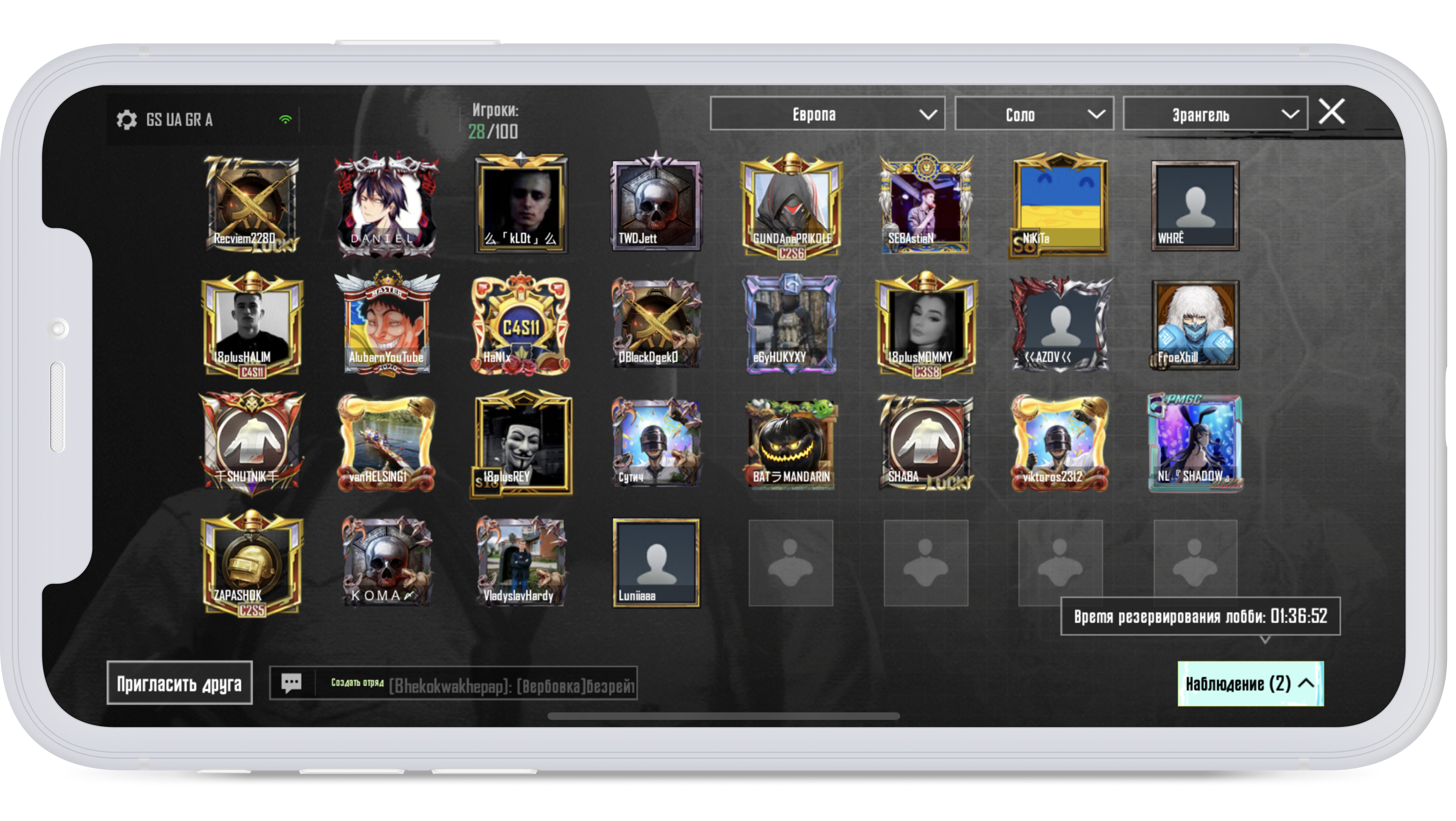
Ось і все, ви в лобі матчу. Дочекайтеся початку гри.
How to create an account and log into GameStars?
To access your GameStars website profile account, click the button located in the upper right corner of the site.You will be redirected to the authorization page.
Log in:
Log in using your existing account credentials, such as your email and password, or through social media accounts (Facebook, Google, and Discord).
On this page, you can also reset your account password.
Register:
If you're not yet registered, click the "SIGN UP" button in the upper right corner.
This will take you to the registration page, where you can sign up using social networks (Facebook, Google, and Discord) or your email and password.
By accepting our privacy policy and terms of use and clicking the "REGISTER" button, you'll complete the registration process and gain access to the GameStars website.
IMPORTANT! Please remember to consistently use the same login method you initially used for registration. Using different login methods (email/Discord/Facebook) results in separate account logins.
Після завершення реєстрації профілю на веб-сайті користувач повинен прив’язати до нього свій ігровий обліковий запис PUBG Mobile.
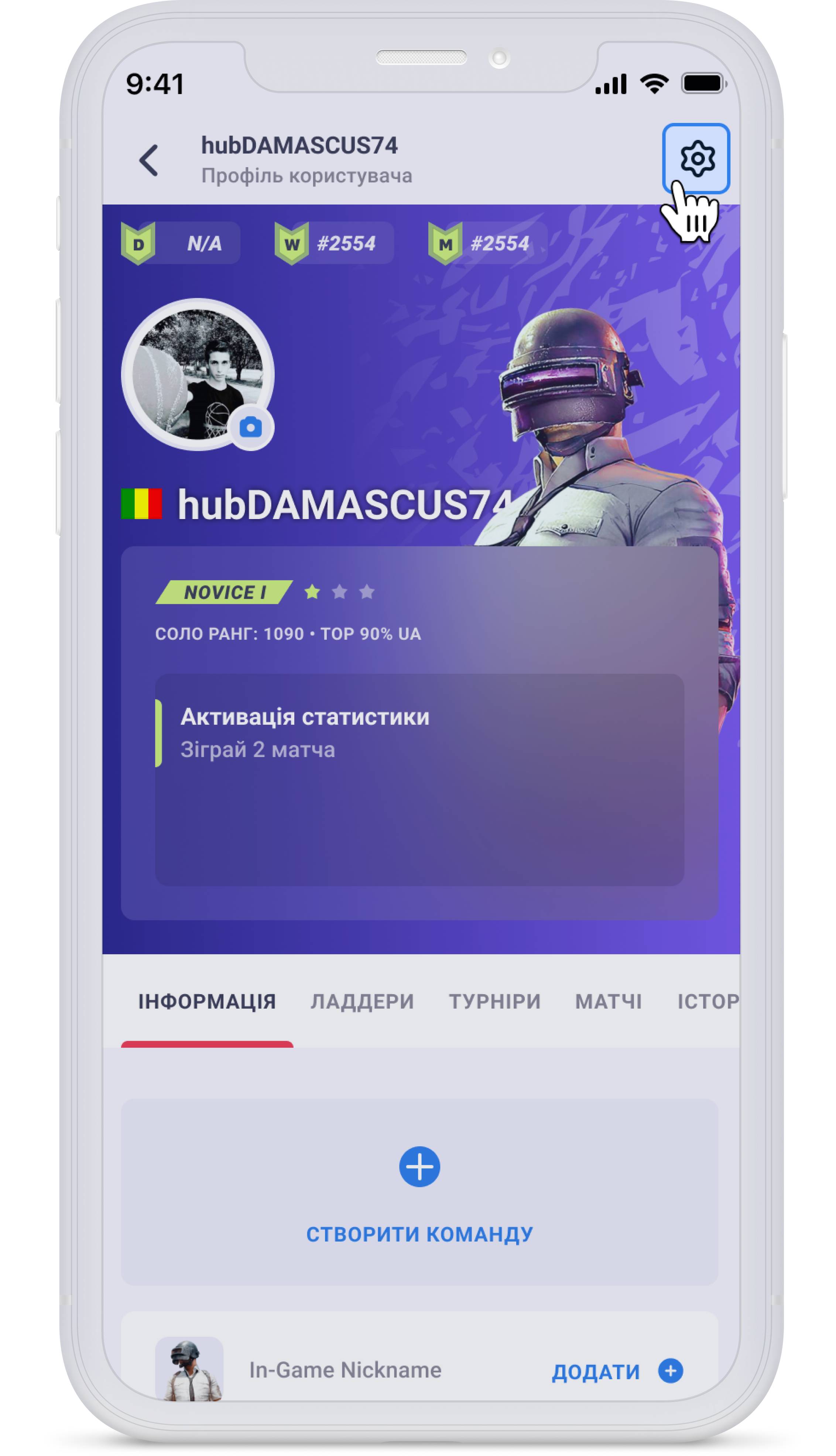
Для цього перейдіть в налаштування свого профілю.
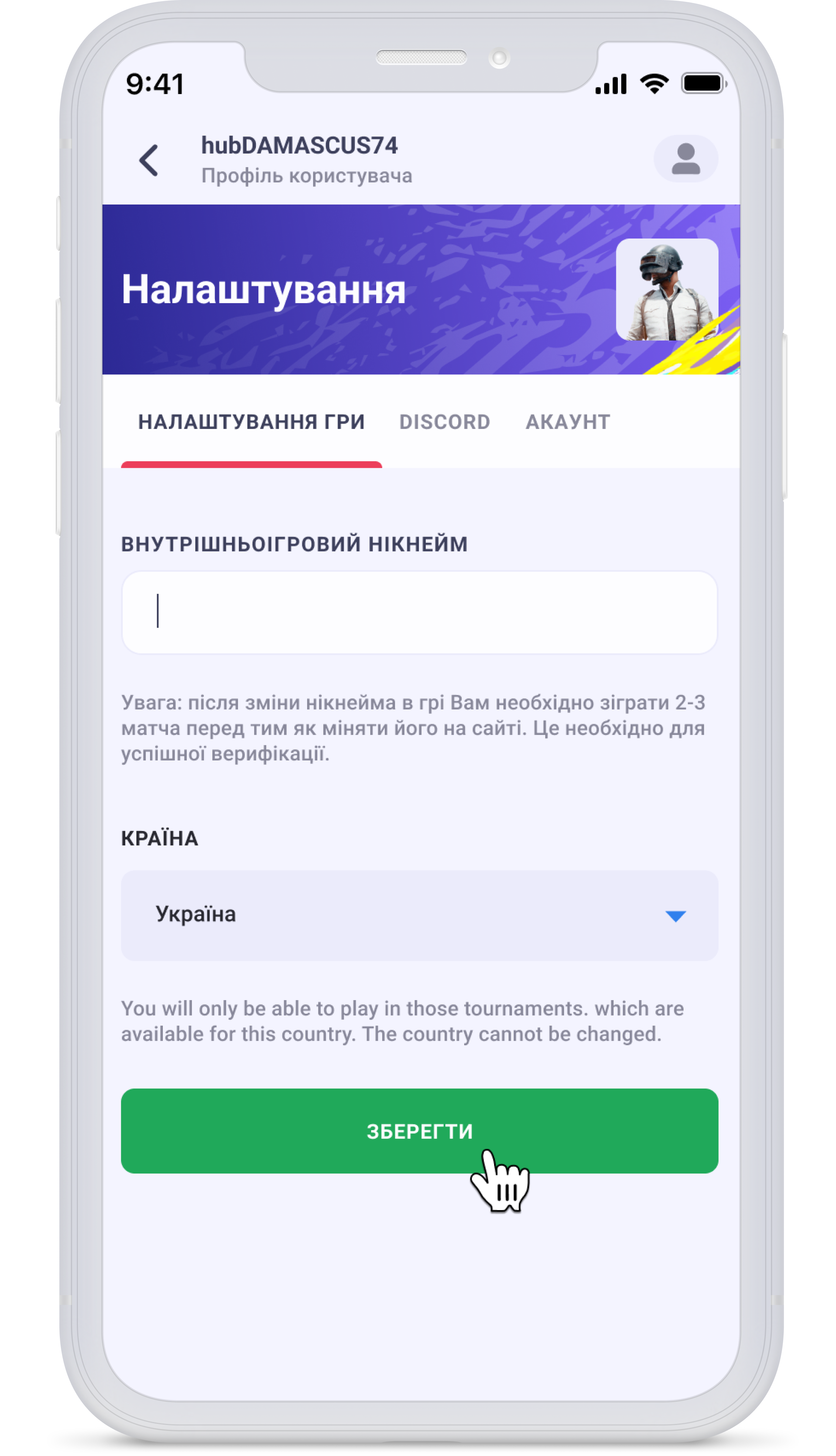
Потім приступайте до активації. Заповніть поля нікнейму мобільної гри PUBG і країни, а потім натисніть кнопку «Зберегти».
How to register for a tournament?
Visit the Tournaments page.
Select the tournament of your choice.
Pay close attention to registration, participation confirmation, and tournament start dates. If everything aligns with your preferences, click "Join tournament."
If you haven't previously activated the game on the website, you'll be prompted to do so.Then click the "Register" button. You’ll be directed to the https://esports.pubgmobile.com/ page, where you must authorise using your PUBG MOBILE account.
Upon correct completion, you'll receive a confirmation message about your successful tournament registration.
IMPORTANT! Join our official Discord channel, where you'll find the primary channel for communication between players and GameStars administration.
How to confirm your tournament participation?
Following tournament registration, you'll need to confirm your participation within a specified timeframe. These dates are available on the tournament page.
When the participation confirmation period begins, visit the tournament page and click "Confirm."
Upon successful confirmation, you'll receive a corresponding notification.
Ensure your nickname displays the appropriate mark among the tournament participants:
-
A green tick signifies that you've confirmed your participation in the tournament.
-
A red cross indicates that you haven't undergone the participation confirmation process, rendering you ineligible for the tournament.
-